
Home | Swag | Courses | Prizes | Rules | Ultra Challenges
In a change from previous years, to get credit for running an FLRC Challenge course, you submit your time directly to the leaderboard. No Webscorer app or need to scan QR codes! Here’s how you enter, edit, and delete times. For all these actions, you must be logged into the leaderboard, which you do by tapping Account in the upper-right corner and then tapping Log In. (It uses the same login as the FLRC forum, so if you’re logged in there, it should be an instant connection.)
Note that you’ll get an error if you enter a start time in the future or record a time that’s faster than the world record for your age.
Enter Times
Entering times is easier than ever before:
- Tap Courses to open the menu.
- Tap the name of the course you’ve just run.
- Tap the green Add Result button and continue with the next set of steps below the screenshot.

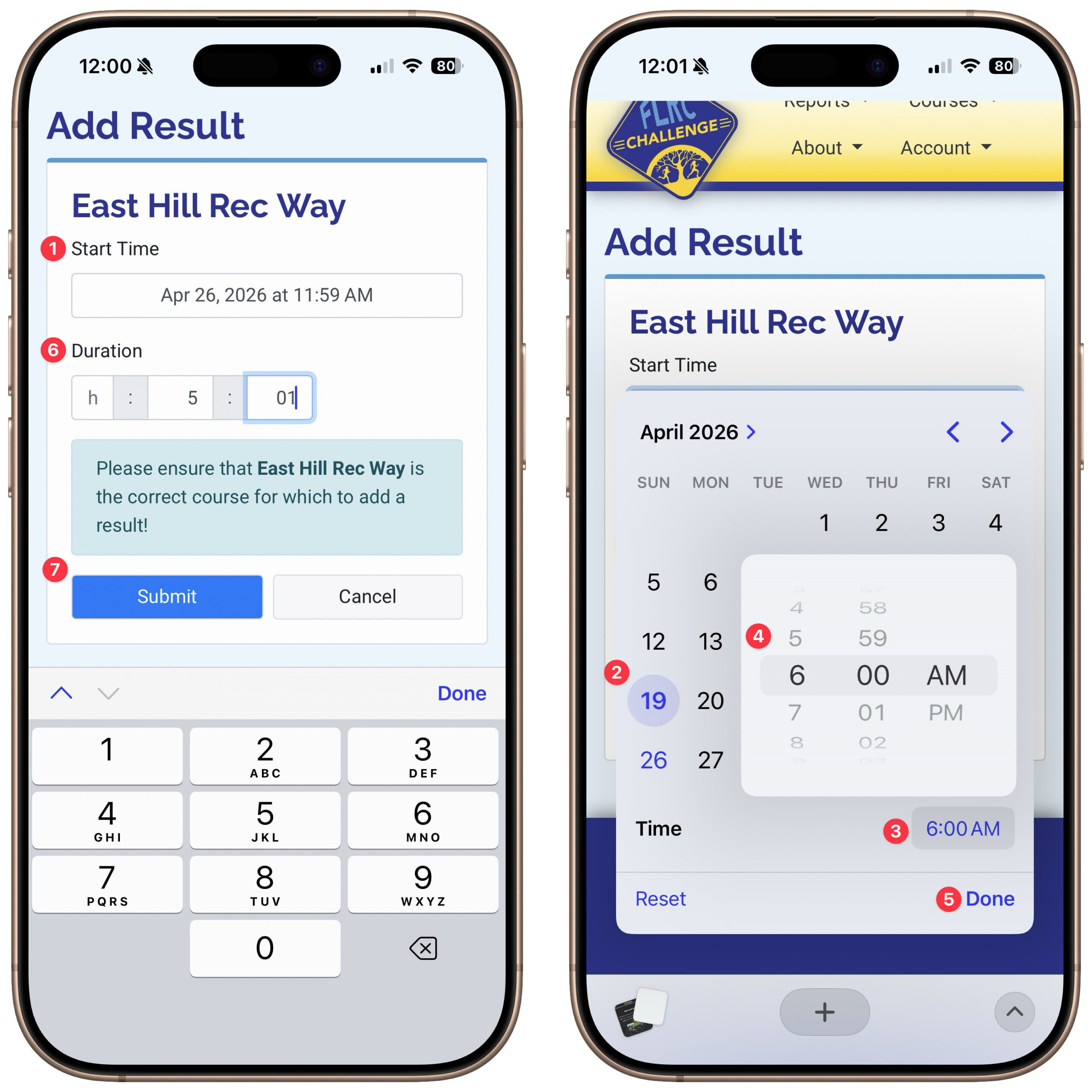
- If desired, change the Start Time. It defaults to the current time, so if you don’t care about an accurate time of day, you can accept the default. Remember that running with one or more friends earns you a community star; to make sure that happens, set your start times to the same (technically, it works if they’re within 5 minutes of each other).
- In the calendar picker that appears, tap the appropriate date.
- Tap the time to open the time picker.
- Use the sliders to select the right time.
- Tap Done
- Enter your running time in the Duration fields. You can leave the Hours field blank if your time was under an hour.
- Tap the Submit button.
Edit Times
If you enter the start time or running time incorrectly, you can edit it later. These instructions take place on your Athlete page.
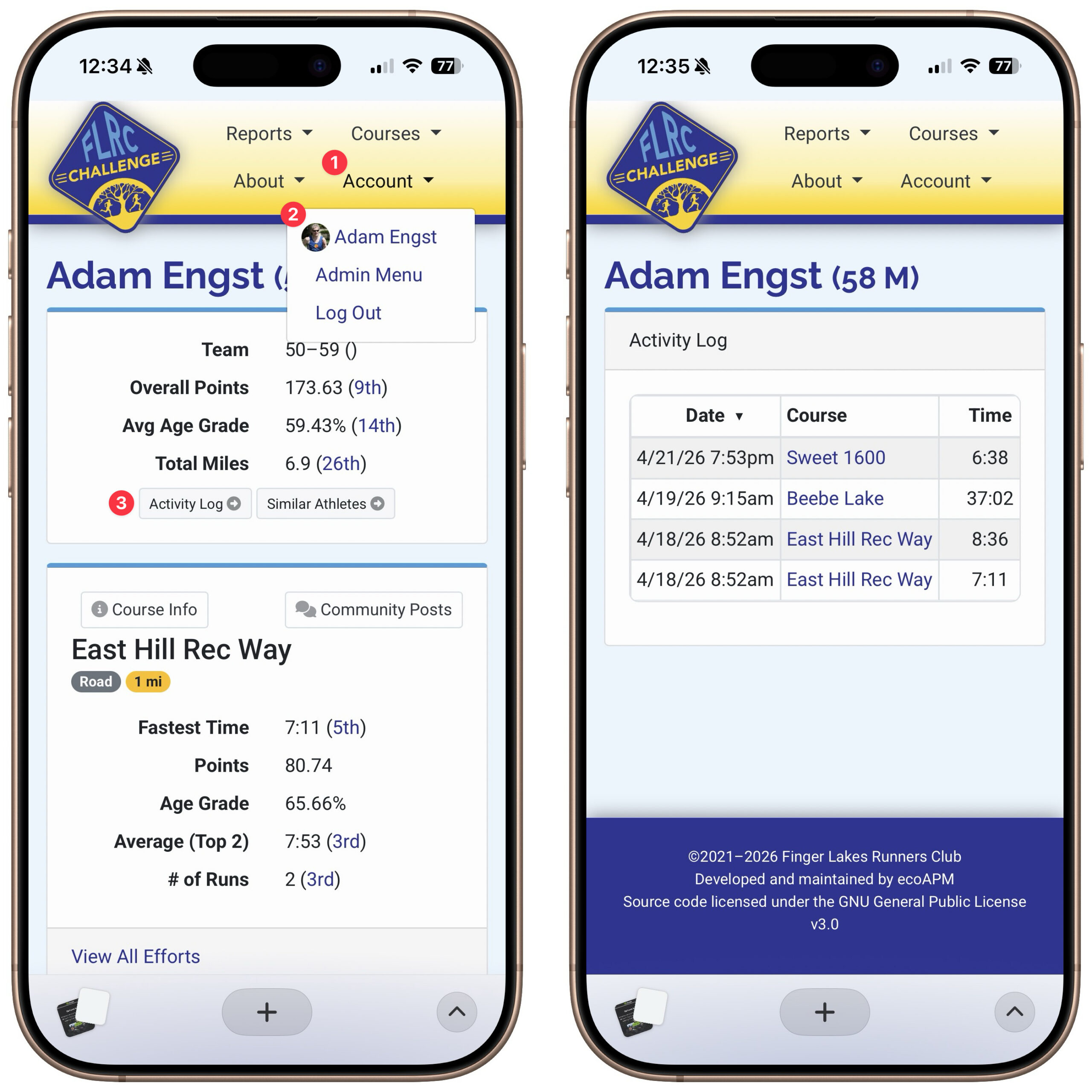
- Tap Account to open the menu.
- Tap your name. (You can also tap your name anywhere it appears as a link on the leaderboard.)
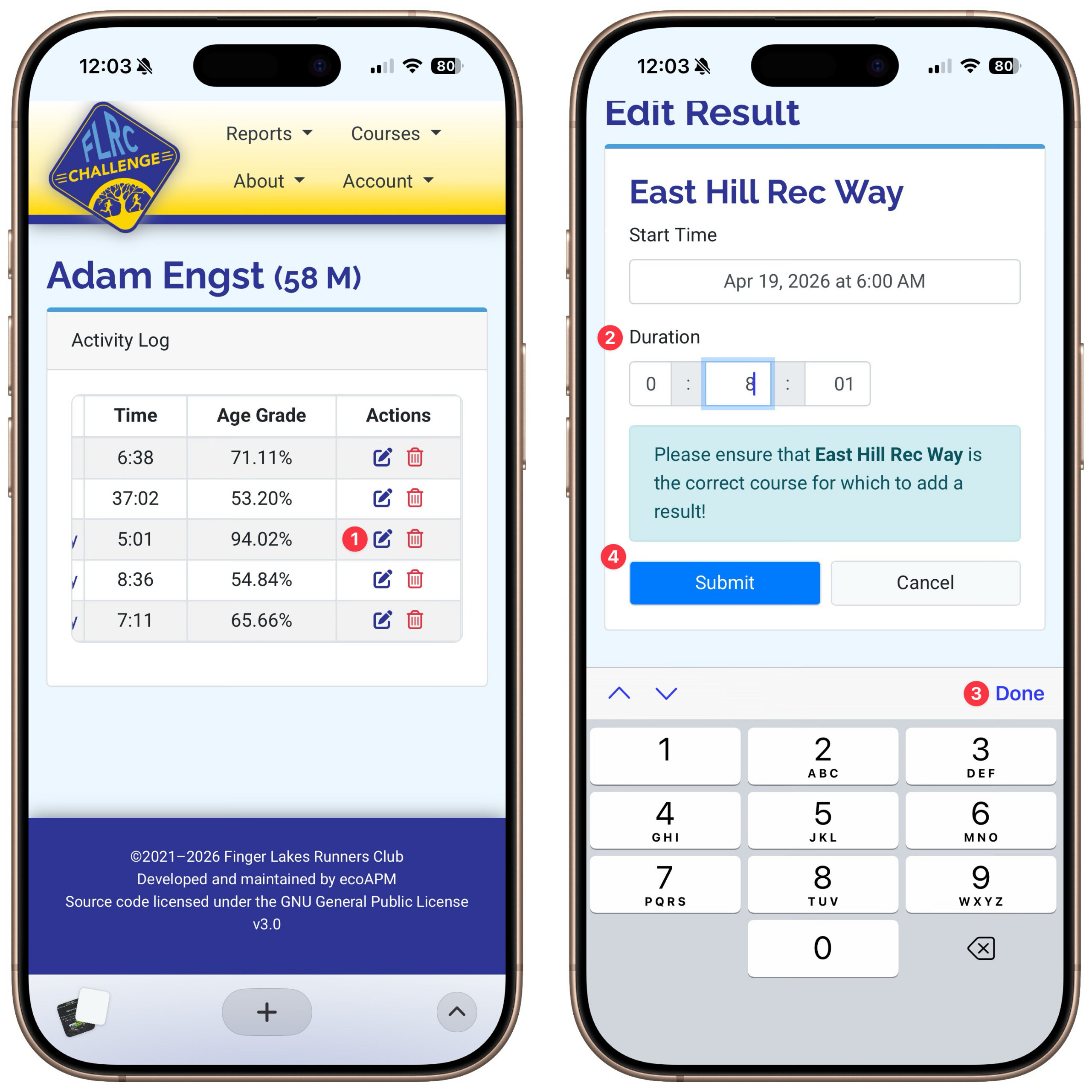
- Tap the Activity Log button to open your personal activity log. Note that the Edit and Delete buttons probably won’t be visible by default on a phone.
- Scroll to the right and tap the Edit (pencil) button next to the result you want to change.
- Change the time in the Duration fields. (You can also edit the start time if desired.)
- Tap Done.
- Tap Submit.
Delete Times
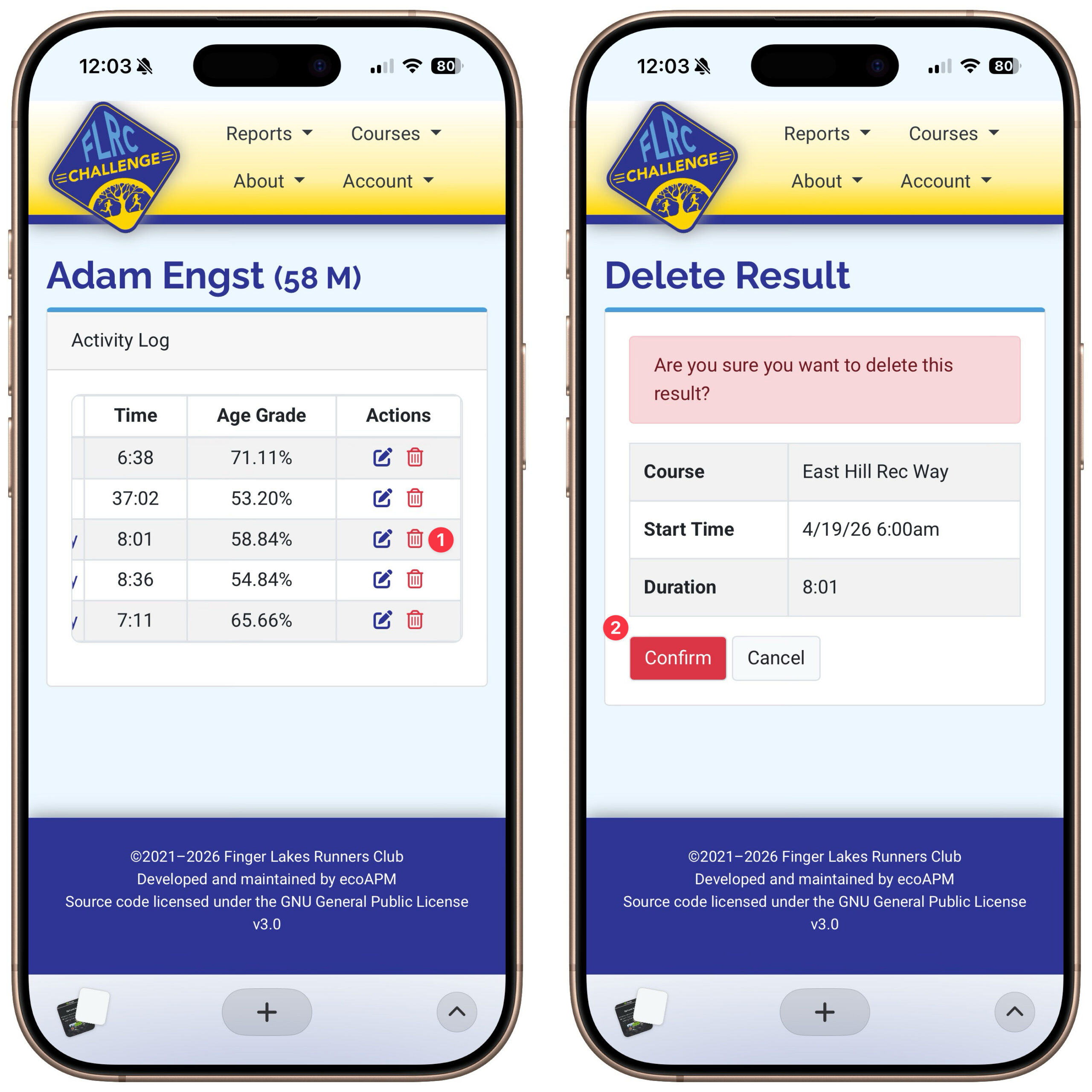
If you’ve accidentally entered a time for the wrong course, you can delete it entirely on your own.
- Tap the Delete button next to the result you want to delete.
- Tap the Confirm button once you’re sure you’re working on the correct result.
If you have any problems, contact Challenge Director Adam Engst for assistance.